Pages

Showing posts with label apps. Show all posts

Thursday, May 05, 2016

Motivated Moms Mother's Day Sale!

This post contains affiliate links.


It's really no secret that I am, as my friend Tauna puts it, "domestically challenged." I can clean really well, but there's a lot of clutter around here, so cleaning anything takes longer than it needs to because of all the picking up that has to happen first. Can anyone else identify with this scenario?

A few years ago, I learned of the Motivated Moms planner, and it has changed my life for the better. It started out as a printable ebook, and now they have both Apple and Android apps, too.

What is Motivated Moms? Well, let me tell you a bit about it. It's a daily list of tasks to help keep you on track with your home. There are daily tasks, weekly tasks, monthly tasks, and annual tasks. If you complete the lists every day, you will find your house takes shape fairly quickly and stays that way. There are things on the list that I would never think to do without a reminder - like cleaning the globes on ceiling fan light fixtures.

The lists in the apps are customizable. You can color-code chores to assign them to family members, and then sync across devices. This feature has worked really well for me, because we are a techie family and my kids all have iPads. Here are some views from my app:


I used to prefer the printable planner, because I like having the visual reference right in front of me. Unfortunately, it was easy for me to misplace it. I would move it, or someone else would, and it just didn't stay front-and-center as I'd hoped. I was resistant to the idea of depending on an app, but once everyone got used to it, I found it worked really well.

Another nice feature of the app is, if you don't happen to complete a day's list, the next day's list appears the following morning. There is no guilt! I do try hard to get my lists done, but it doesn't always happen. Just keeping it real here, folks.

The best thing about the Motivated Moms planner is that it really helps keep me on track throughout the day. I am easily distracted. I might go to start a load of laundry, see that a cat threw up somewhere along the way, stop to clean that up, realize I should really vacuum the entire floor, see the shoes someone left out that should be put away... and then realize, after all that, I never did start the laundry! I'm also prone to being in a muddle, as my mom likes to say; at loose ends, so to speak. If I find myself unsure of what I should be doing next, I just pull up my task list.

The best news? The annual Mother's Day sale is happening RIGHT NOW! From today, May 5, through Monday, May 9, all MoMo products are 50% off!

  • Apps - iOS or Android,  including 2 months subscription - Regularly $1.99, now $0.99
  • 1-year app subscription, including free ebook - Regularly $7.99, now $3.99
  • Ebooks - Choose from black & white or color, full-page or half-page, with or without scheduled Bible readings
  • "Lite" apps  - 2 weeks' worth of tasks so you can try before you buy! (iOS/Android)
Please note that the free ebook offer is only valid when the subscription is purchased through the Motivated Moms website. It won't work if with in-app purchased. 

If you already have an app subscription, purchasing now will add a year to whatever you currently have. 

I really, really love the Motivated Moms planner. I hope you will check it out, if you're looking for something to help you manage your time better during your days. I can certainly use all the help I can get, and I appreciate the good habits my MoMo app is helping me develop.

Disclaimer: I received a free year's app subscription in exchange for offering my honest review.

Sunday, April 14, 2013

REVIEW - Timeline Builder App from Knowledge Quest


I have been a fan of Knowledge Quest products for years now. I'm pretty sure I own most of them! 


I already owned the Timeline Builder iPad app when the opportunity came up to review it. It was a great opportunity to finally put it on the girls' iPads and see how it worked.

I love the idea of timelines. I have attempted to do timeline books with the girls. I've printed my own, and I've used bound books (the ones from Knowledge Quest, incidentally, are lovely). However, it's just not something we remember to do regularly. It can be time consuming to look up the images and make sure they're all ready to go in the book. Also, I'm a bit of a perfectionist, and my girls have inherited that trait, the poor dears. We actually bought a book with suggestions of where to put the figures in our timelines, because we were so concerned about messing them up. (It was good to know, actually, that there is enough demand for someone to create that resource. We're not the only ones! Ha!)

The TimelineBuilder iPad app makes the entire process SO much simpler! Here's how it works:
  1. Open the app, and click on the "New Timeline" tab at the bottom of the screen (it's yellow).
  2. Give your timeline a name by tapping in the "Timeline Name" field, add a description if you like, and enter the starting and ending years. You have the option to choose BC/AD or BCE/CE, whichever appeals to you.
  3. Select a background for your timeline by tapping on the "Select Background" button. 
  4. Voila! You have a lovely blank timeline! In the upper left corner, you will see a button that says "New Event." Click on that. Tap in the fields to bring up the keyboard so you can enter the information. 
Creating the Timeline


See there? That's all there is to it! Once your events are entered, you can use your finger to tap and drag your pictures where you'd like them to appear on the timeline.

I started out by making my own timeline. I thought I'd just go from the beginning of history until present day. That may have been overly ambitious, so I revised my plan. I decided to start out more simply and make a little timeline for my son. First, I created the timeline. I added his birthday, when he started preschool, his broken leg with a graphic from the internet, and picture of him digging for treasure in our yard, with a picture my daughter took with my iPad.

When you want to add an image to the timeline from the internet, the app automatically takes you to Wikipedia, but you can go from there to anywhere else. The timeline app will close when you do this, because of the way the iPad works. Once you've found the image you want to use, the key is to keep tapping it until it's the only thing you see, and then hold your finger on it until the "copy" menu comes up. Then, you will exit out of the web browser, go back into the app, and select "Import from Pasteboard." Choose the pixel size of your image, and then you will see it in your timeline record. It took me a little playing around to figure out the "Import from Pasteboard" button.
Adding a graphic from the internet
Adding a picture from the camera roll on the iPad is quick and simple. First, click on the button that says "Import Image from Library" It brings up the little screen you see below on the left, with the photos  you have available. Tap on the one you want, and it will take you to the resizing screen (above left). Once you choose your size, your picture is there and your event is ready to go!

Adding a picture from the Camera Roll on my iPad
When I was ready to have the girls create timelines of their own, we decided to make one to go along with a book we're reading,  Our Island Story by H.E. Marshall. We've been reading it over the last couple of years, and they've enjoyed it. It's been one of our favorites. Conveniently, the version of the book we have includes timeline dates. They add images when we can find them, but it's not required. It's an ongoing project, and we're all having a good time with it. They love to be able to work independently of me and not having to do lots of cutting and pasting of paper. I would still like to do a hard copy timeline book, but perhaps we will make it a family project instead of everyone doing their own. My plan going forward is to have them create a timeline for each year in our history cycle.

The only very small detail I didn't care for in the app was the way the images are sized. They automatically become square, so they are a bit distorted. You really don't notice it much when you look at your timeline, but if I had my "druthers," I would be able to choose the portion of my image that would fit in the required spot in the app, and be able to maintain the original proportions.

When I first got the app, the application that came to my mind was to use it as a tool for our history studies. It has proved to be excellent for that purpose - but you can do so much more with it! You could use it for many subjects, including science and literature, as well. I love the idea of making a family timeline. I love genealogy and thought it might be fun to make a timeline of my grandmother's life. I'd like the girls to consider doing one for their own lives. It has business applications, as well. You can even share your timeline via email or with other users of TimelineBuilder.

The app is intended for all ages. I would think any child who could read could use it easily. I am sure my 5-year-old (not reading quite yet), could use it as well, but I would have to do the data entry for him. It's available for the Early Bird Special price of $4.99 (reg. $6.99) on the iTunes App Store. Definitely check it out! They have lots of images with ideas on their website.

Click here to read more reviews from the Schoolhouse Review Crew!


Thursday, February 21, 2013

REVIEW: Wet, Dry, Try App for Handwriting Without Tears


I live in a family that loves technology. Since my husband is a computer guy, we have a lot of nifty tech devices. As is often the case, my children know how to use these things so much better than I do! My five year old, in particular, thinks it's big fun when he's allowed to use "his" iPad. 

We've been trying to do some school work with him this year, but he's been resistant - particularly when it comes to handwriting. Does he sound like a typical boy, or what? 

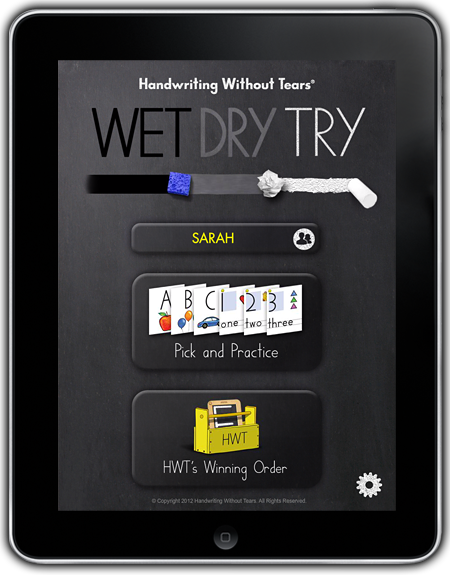
Enter the Wet- Dry-Try app, from the creators of Handwriting Without Tears handwriting curriculum! For the purpose of this review, I received a download code for the app for the iTunes store, regularly $4.99. It works with all versions of the iPad, even our old "first generation" one. The app is also available for Android devices from Google Play. It's aimed at Pre-K and kindergarten aged children, and could also be used with older children for remediation. 

There are two choices for how you'd like to use the app: "Pick and Practice," which allows you to choose whichever letter you'd like, and "HWT's Winning Order," following the order in the Handwriting Without Tears curriculum. There are three levels of difficulty for each letter. Once the student achieves 3 stars for a letter, they earn a "letter card." Children seem to like to collect cards, don't they? I know Isaac does!


Isaac had a LOT of fun with this. We used the "Pick and Practice option." I had him do the letter of the week from our K curriculum first, and then allowed him to try any other letters he wished. The app mimics the Handwriting Without Tears chalkboard activity, in which the student has a small chalkboard, a wet sponge, a paper towel, and a piece of chalk. First, the "personal instructor" (or, as I like to think of the voice, the Invisible Person) inside the app demonstrates how to form the letter correctly by writing it with the chalk on the virtual chalkboard. Then, the student uses their finger to make the letter shape with the wet sponge icon, then with the paper towel icon, and finally writes it themselves with the chalk icon. In the app, you trace with your finger each time, and the screen shows the sponge, the paper towel and the chalk on each successive turn. Once the student completes the letter successfully three times (wet, dry & try), they get a star, which Isaac thought was pretty cool. He also had me try, and was ever so proud when I achieved a star for my letter-making. :-)


When he first started using the program, I thought it might be a little too sensitive to error. I watched him try to make a capital "B," for example, several times, unsuccessfully. However, he did learn to pay closer attention and be more careful, and eventually he got it right. It was good for him to have to work at it a bit. I read in the FAQ section on the website that "After testing, [they] landed on the degree of sensitivity that is most helpful in preparing children to write well." Look at that! They agreed with me. Oh, wait. Maybe that should be the other way around . . .

I like that the personal instructor encourages the student. If they make an error, it says something like, "Let's give that another try." When you get it right, it says something like, "Great!" or "Cool beans!"  It might sound a little silly to me, but Isaac responds well to the encouragement. Sometimes, Isaac's teacher forgets to be encouraging and might indulge in more frustrated sighing than is strictly necessary. Ahem. The Invisible Person In The App is very nice, all the time. Her voice is pleasant to hear, also. That's important. Isaac talks all. the. time. I don't know if I could listen to him chattering and handle a grating voice coming from an invisible person.

This is a great app. Isaac enjoys it, and it teaches correct letter formation, which he needs to practice. He can't practice reversals or starting his letters in the wrong place with this app, like he can with pencil and paper. He argues far less with the Invisible Person than he does with me, and he doesn't seem to get frustrated at having to start over. I also love that he gets the practice of the chalkboard activity without using an actual chalkboard. Chalk is so messy, and as we do a lot of school on the couch, I much prefer the iPad option.

I've been considering cutting back on "school" with Isaac to math and handwriting, and after using this app, Handwriting Without Tears is one of my top handwriting choices. Even if I don't end up purchasing the curriculum, the app is great for painless handwriting practice.

Click to read more reviews from the Schoolhouse Review Crew!